This guide walks tenant administrators through ordering value-added services with the tenant's credits. When you're done, review the payment result on the subscription page and confirm the changes to your credit balance and service quota.
Prerequisites
- You are a tenant administrator of the current tenant.
- The current tenant has enough credits to cover this order.
- You are signed in to the Lovrabet console.
Steps
Open the subscription page
Open the subscription page: https://app.lovrabet.com/tenant/service-subscription
The page lands on "Value-added service subscription" under "Tenant management".
Check that the page shows the unit price, quantity, total credits, and the "Pay with credits" button.
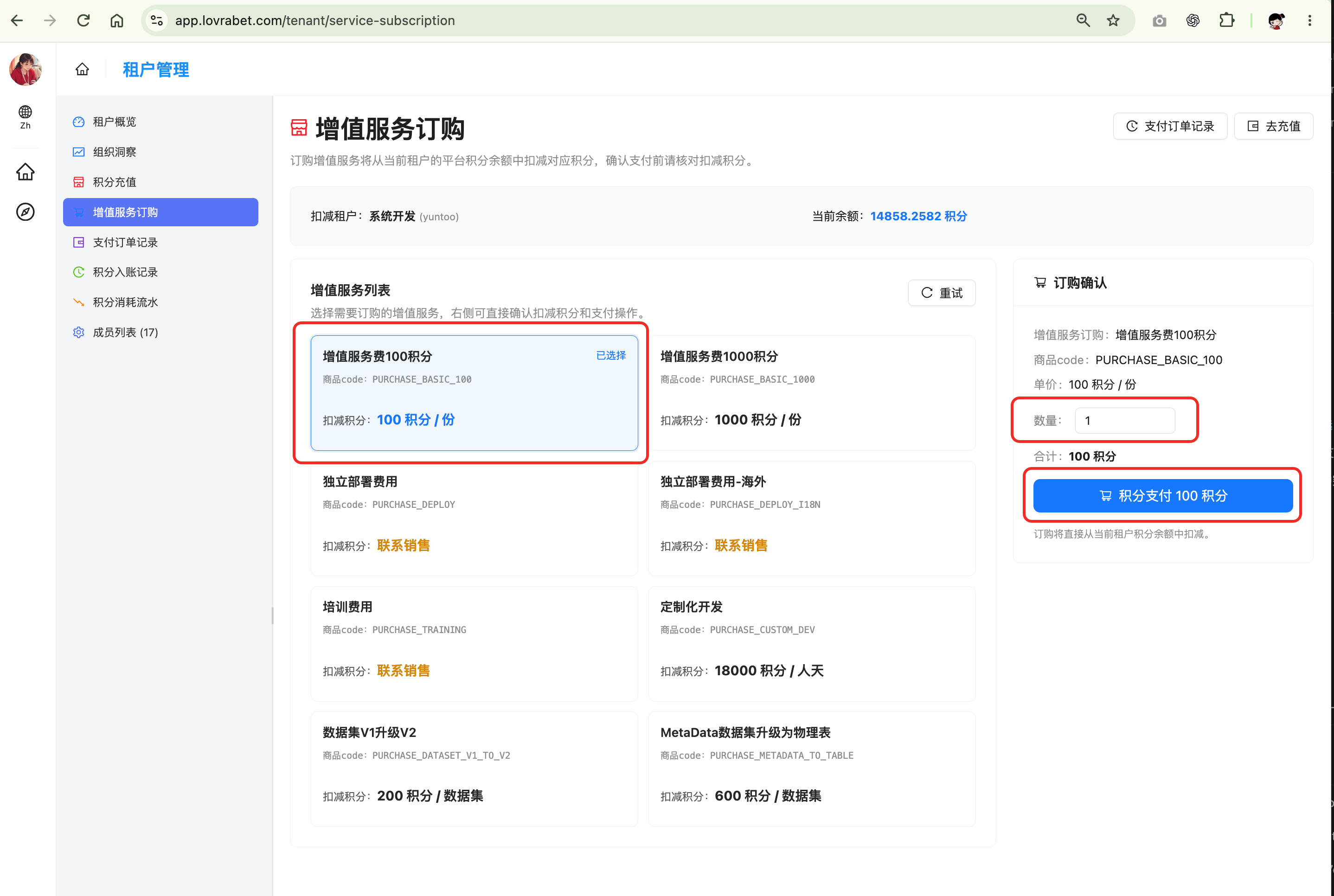
Enter the order quantity
Enter the quantity you want to order in "Quantity". The page calculates the credits due for this order automatically.
Confirm the total credits
Check the "Total" credits. Make sure the balance is sufficient before you continue to payment.
Click Pay with credits
Click the "Pay with credits" button to complete the order.
Check the results
- The page shows a success message, or the order status shows completed.
- Your credit balance decreases by exactly this order's total credits.
- The value-added service quota or available count increases.
FAQ
The subscription page doesn't appear
Confirm that the current account is a tenant administrator. Regular members may not have access to this entry.
Insufficient credits
Switch to "Credit top-up" on the same page, complete the top-up, then place the order.
The service doesn't take effect right after payment
Refresh the page and check the service quota again. If it still hasn't changed, contact platform support to confirm the order status.